
Social & web links
Choose an available integration, then enter the username or destination requested by the editor. The available catalog is the source of truth.
01 · Start here
Start in the Digica app. A physical Card, Business Stand, Tag, or Sticker is optional: your saved profile can be shared digitally by link or QR.
WalletProfile → Save to Wallet prepares the Apple Wallet flow when the service is enabled and Wallet is available on the device.
Save ContactSave Contact opens the browser/iOS contact-file flow. The recipient still confirms the final save.
NFCFor NFC interactions, follow the on-screen prompt and use close physical proximity. Tap position can vary by iPhone model and product.
02 · Account
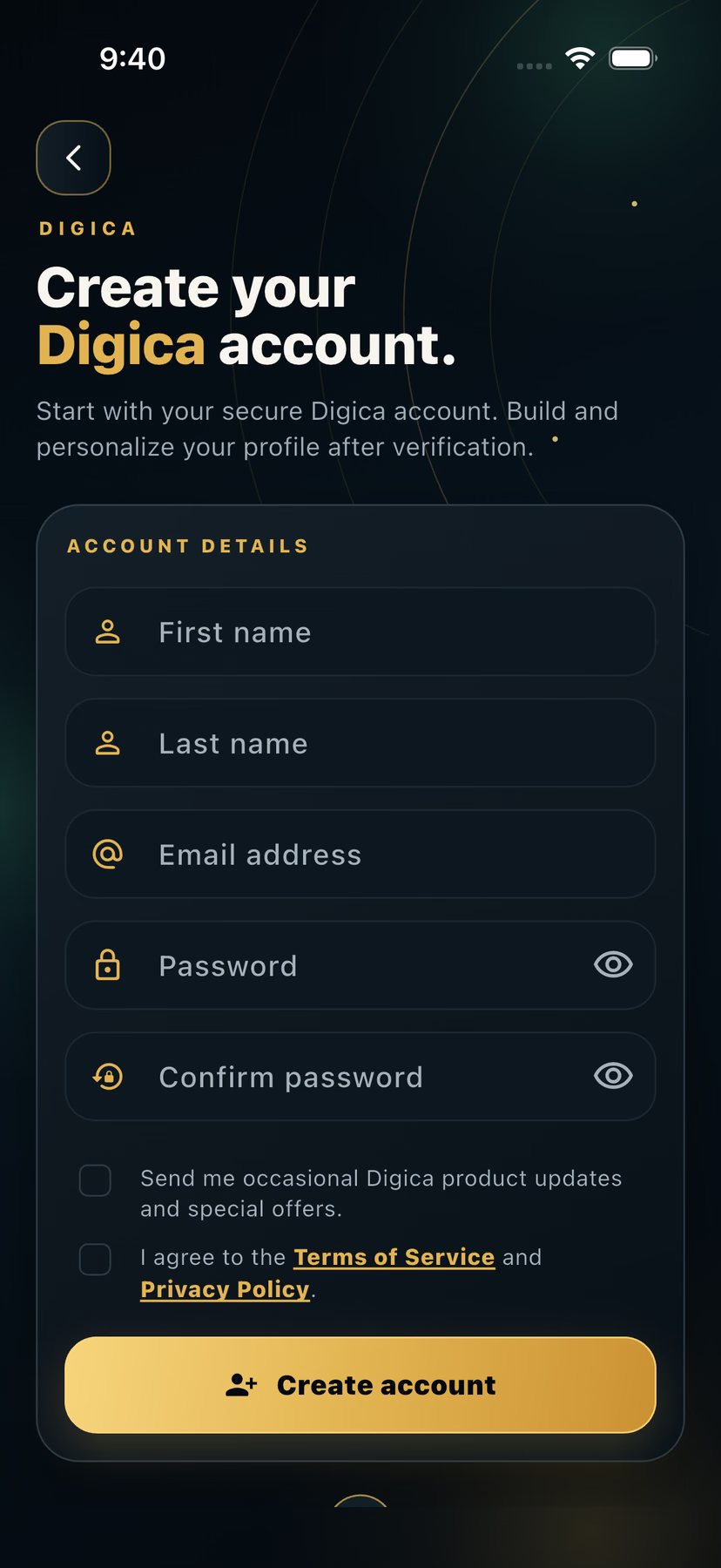
The current account-creation flow collects your basic account details first, then sends a Digica verification code.
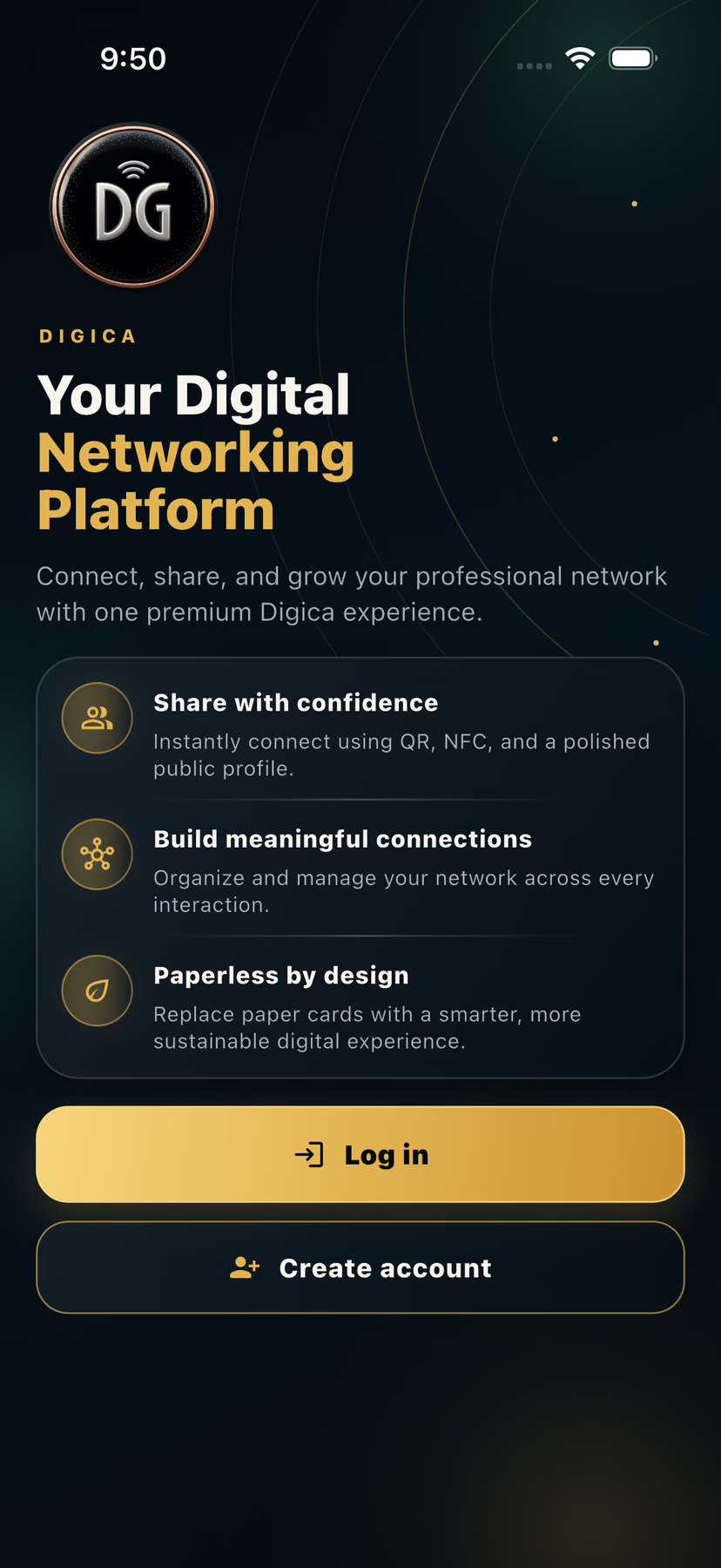
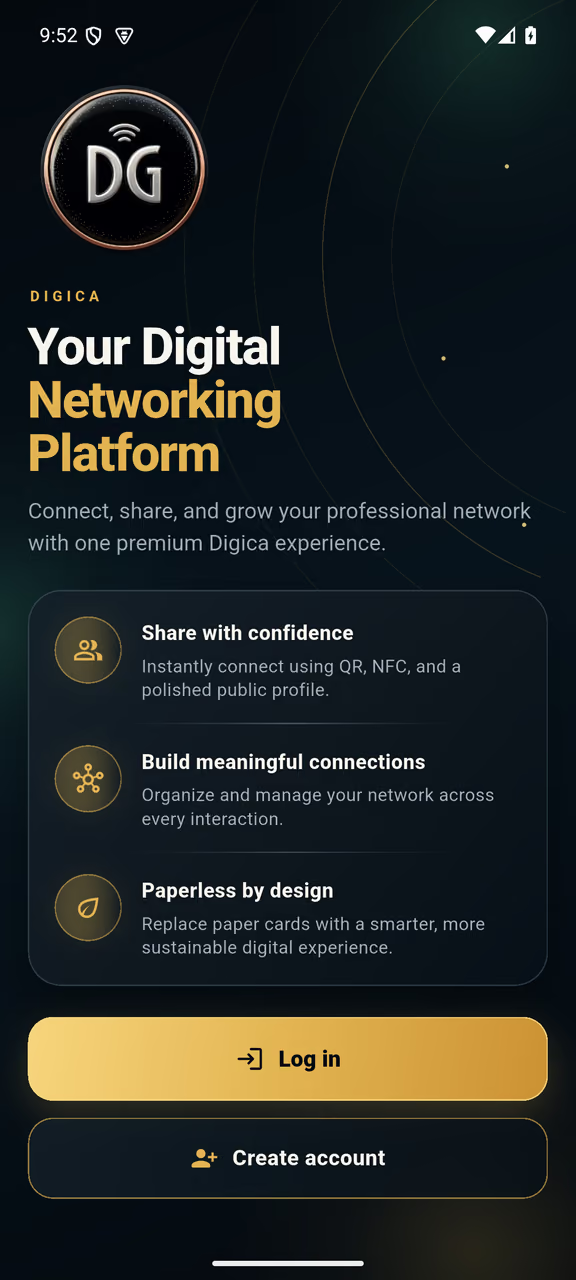
From the welcome screen, tap “Create account.”
Enter First name, Last name, Email address, Password, and Confirm password.
Review and accept the Terms of Service and Privacy Policy. Product updates are optional.
Tap “Create account.” Digica sends a verification code to continue.
Expected: You move into the verification step without exposing your code to anyone else.
03 · Profile
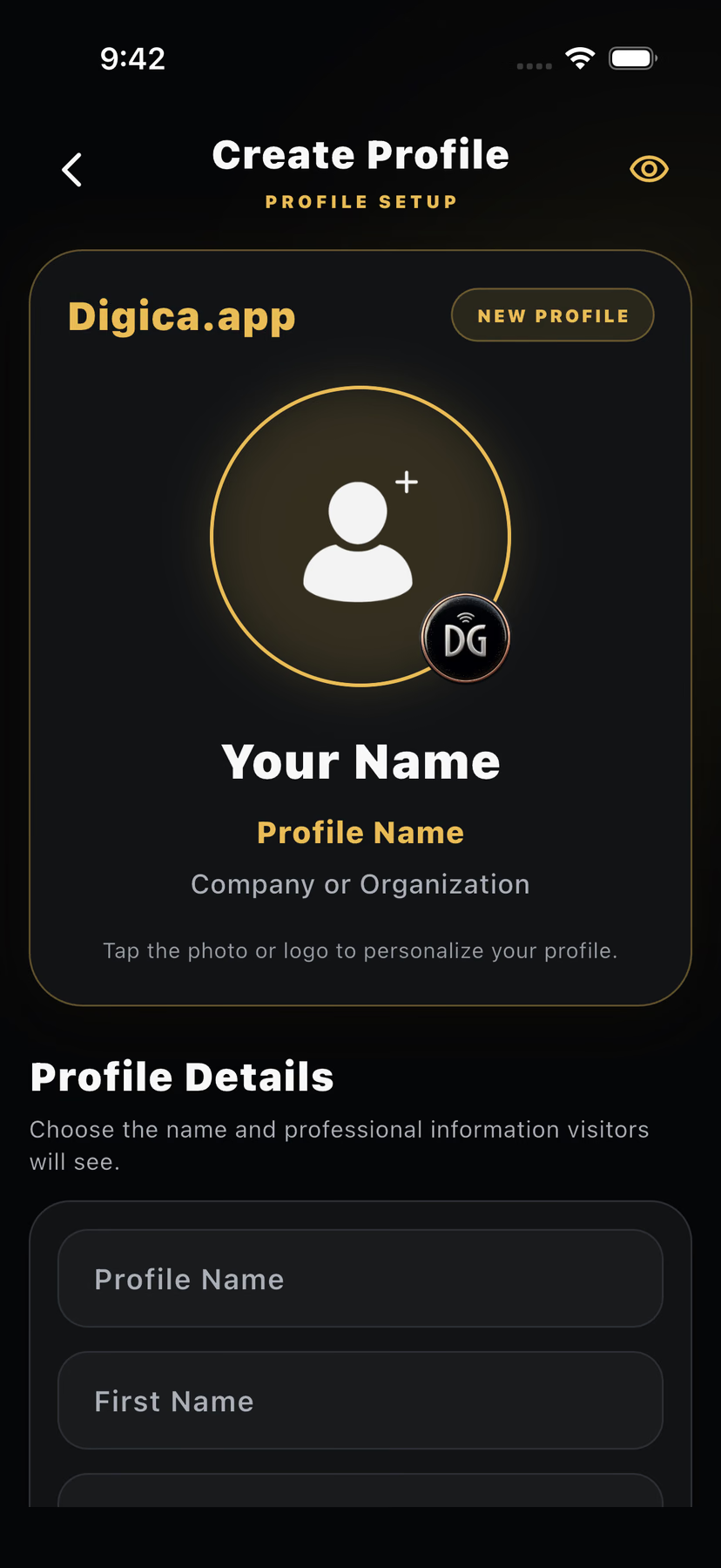
A Digica profile is the information recipients see when you share your Digica. The current editor lets you preview before creating it.
Go to Profile. If you do not have one yet, choose “Create New Profile.”
Add a profile photo or logo, Profile Name, your name, company and job information as needed.
Complete the Contact Information section with the phone, email, website, address, or other details you want to publish.
Use “Preview Profile” to check the unsaved result. When ready, tap “Create Profile.”
Expected: The saved profile becomes available from your Profile area.
04 · Edit
The edit flow is explicit: make the change, preview if needed, then save it.
From Profile, select the profile you want to update and tap “Edit.”
Update identity, profile image/logo, Contact Information, or other published fields.
Tap “Preview Profile” when you want to inspect unsaved changes.
Tap “Save Changes.”
Expected: The saved Digica profile reflects the new information.
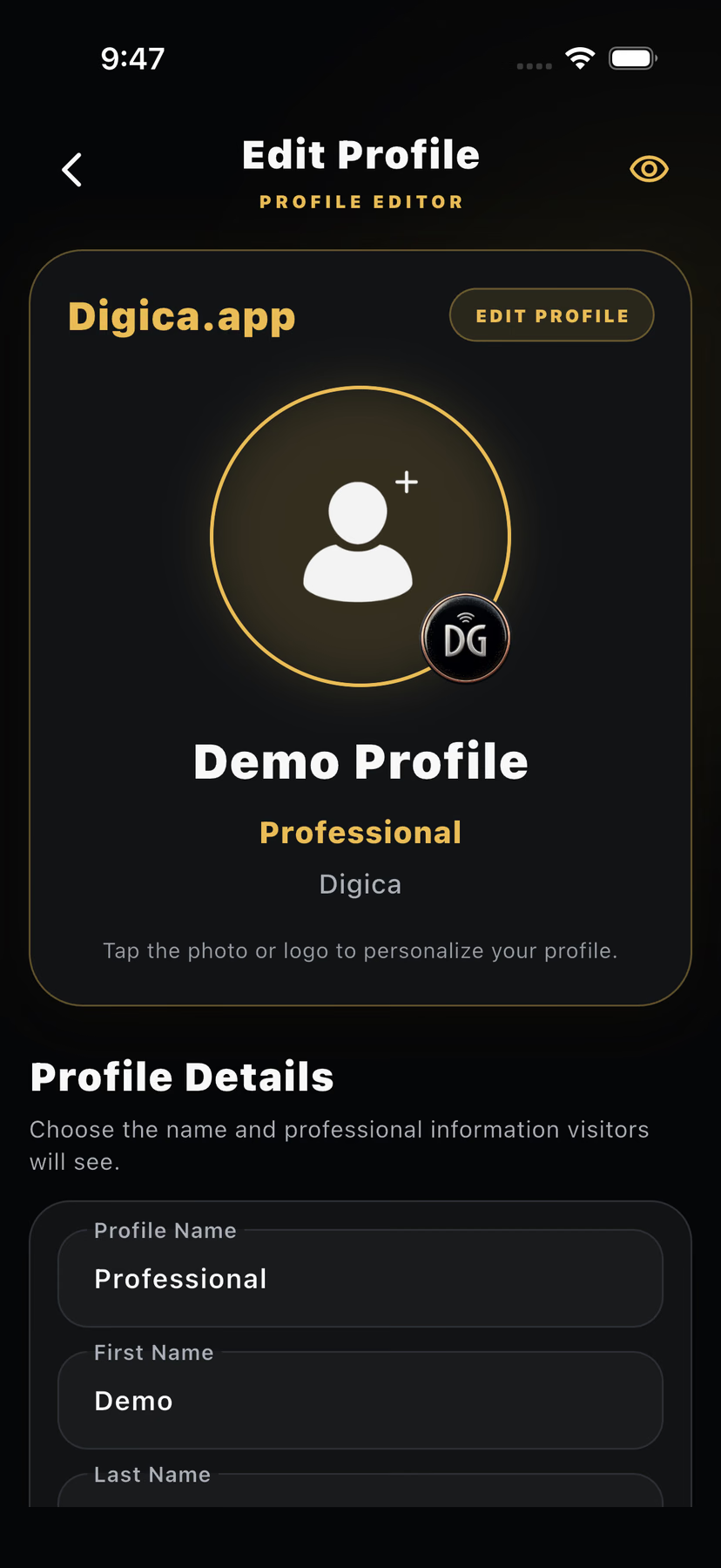
In the current profile editor, the photo and logo are changed directly from the profile identity area. Use clear, current imagery; Digica does not require a made-up image size in this guide.
05 · Links & widgets
Links and widgets live inside the current Create/Edit Profile experience. Only add destinations you control and test.
Choose an available integration, then enter the username or destination requested by the editor. The available catalog is the source of truth.
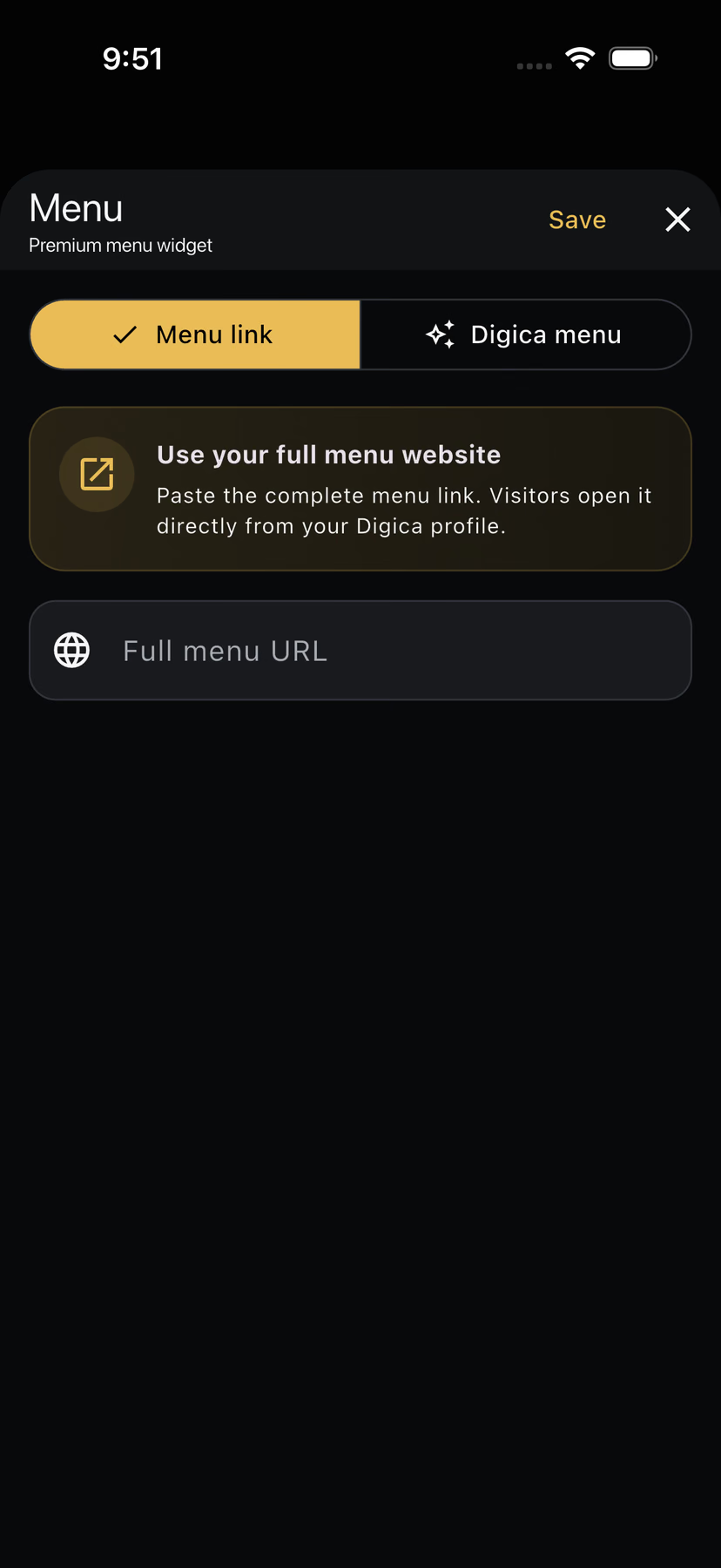
Choose “Menu link” to use a full external menu URL, or “Digica menu” to build a native menu with item name, description, category, price, optional discount price, imagery and availability.
If a link or widget fails to save, reopen Edit and use “Save Changes” again after correcting the required value.
06 · Preview
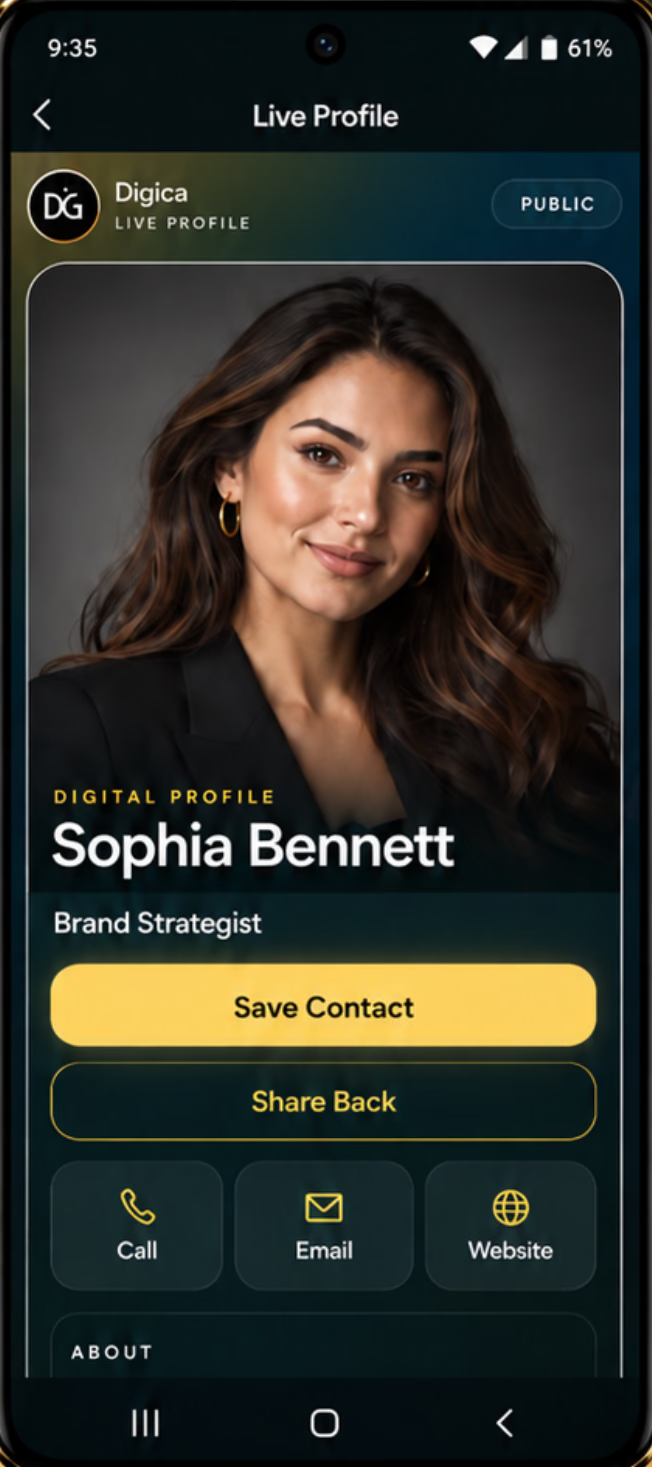
Preview is for checking your work; the live Public Profile is the recipient-facing destination after the profile is saved and live.
Use “Preview Profile” from Create Profile or Edit Profile to inspect unsaved changes.
From the selected Profile, use “View Live Profile” when it is available.
Verify the live profile details and actions such as Save Contact, Share Back, Call, Email, and Website where configured.
08 · QR
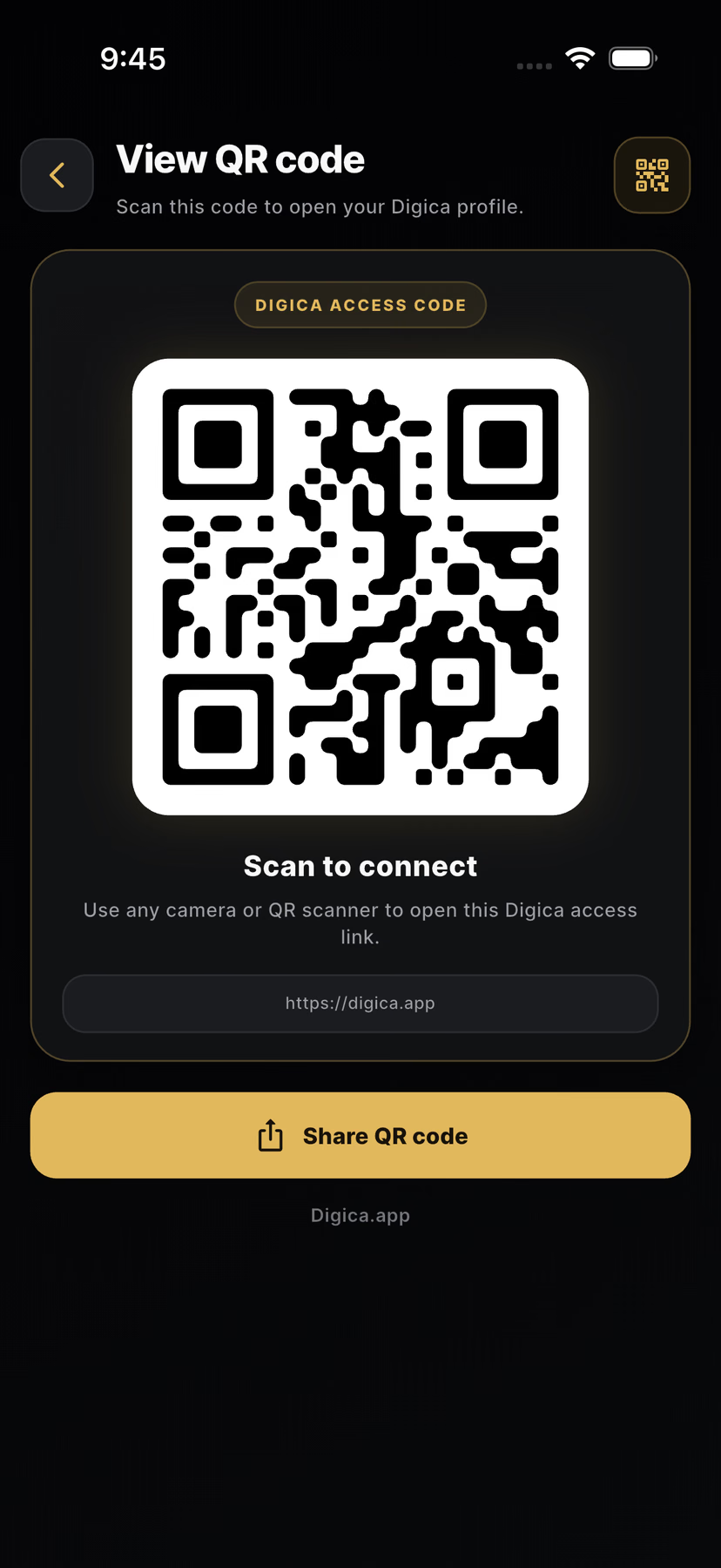
QR is built into the current Profile experience. You can show it in person or share the QR from the app.
From the selected Profile, tap “QR Code.”
Let the recipient scan the displayed code with a compatible phone camera or QR scanner.
Use “Share QR” from the QR presentation screen to send the code digitally.
Expected: A successful scan opens the profile destination represented by that QR.
This manual never publishes a customer QR, temporary preview token, activation code, or private route. Product imagery below uses only approved/safety-reviewed artwork.
09 · Cards, Stand & NFC
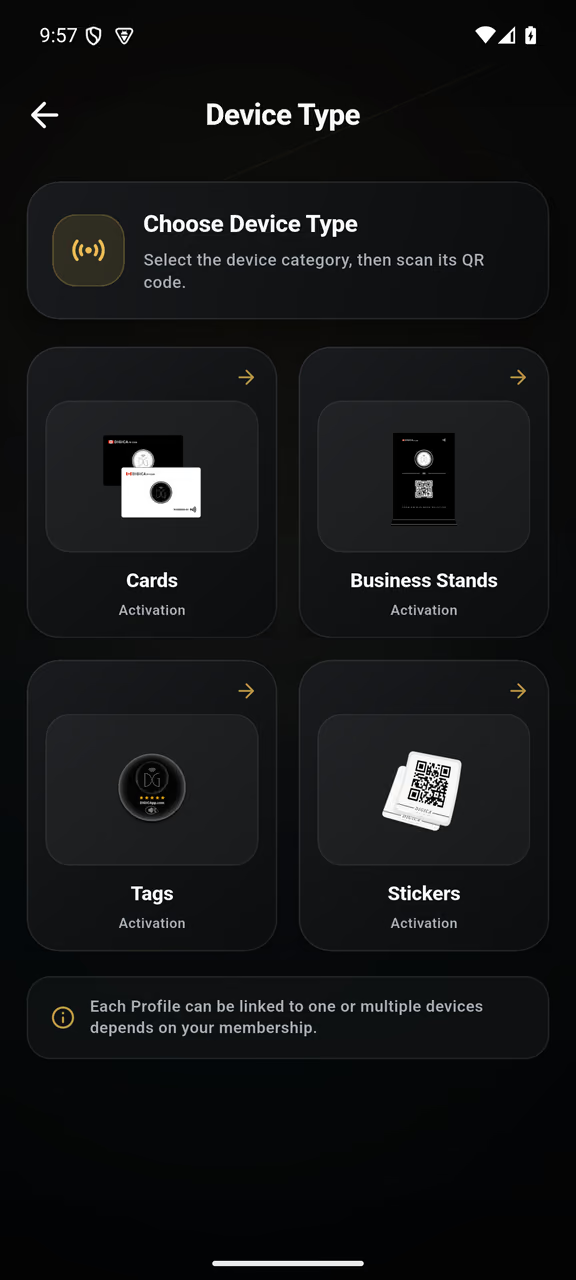
The current connected-product flow is profile-specific. Cards, Business Stands and Stickers use the in-app QR scanner during activation; Tags use the app’s NFC reader.
From the selected Profile, open “Connected Devices.”
Tap “Add Device,” then choose Cards, Business Stands, Tags, or Stickers.
For Cards, Business Stands and Stickers, scan the product code. For Tags, follow the NFC reader shown by the app.
Digica confirms a successful connection. If the product is already bound, the app reports that instead.
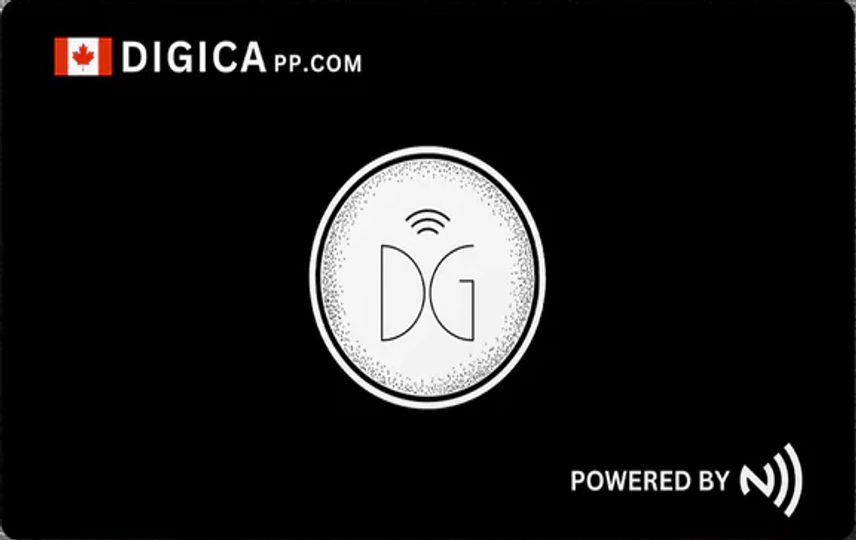
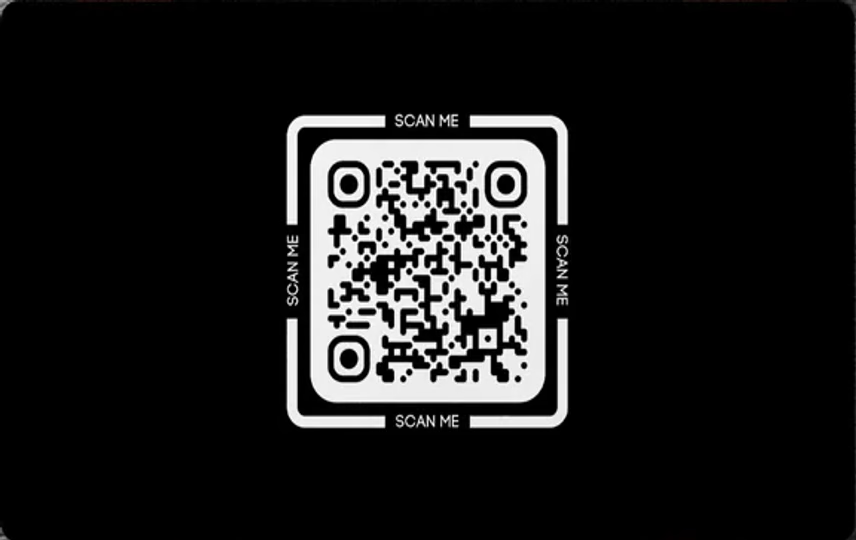
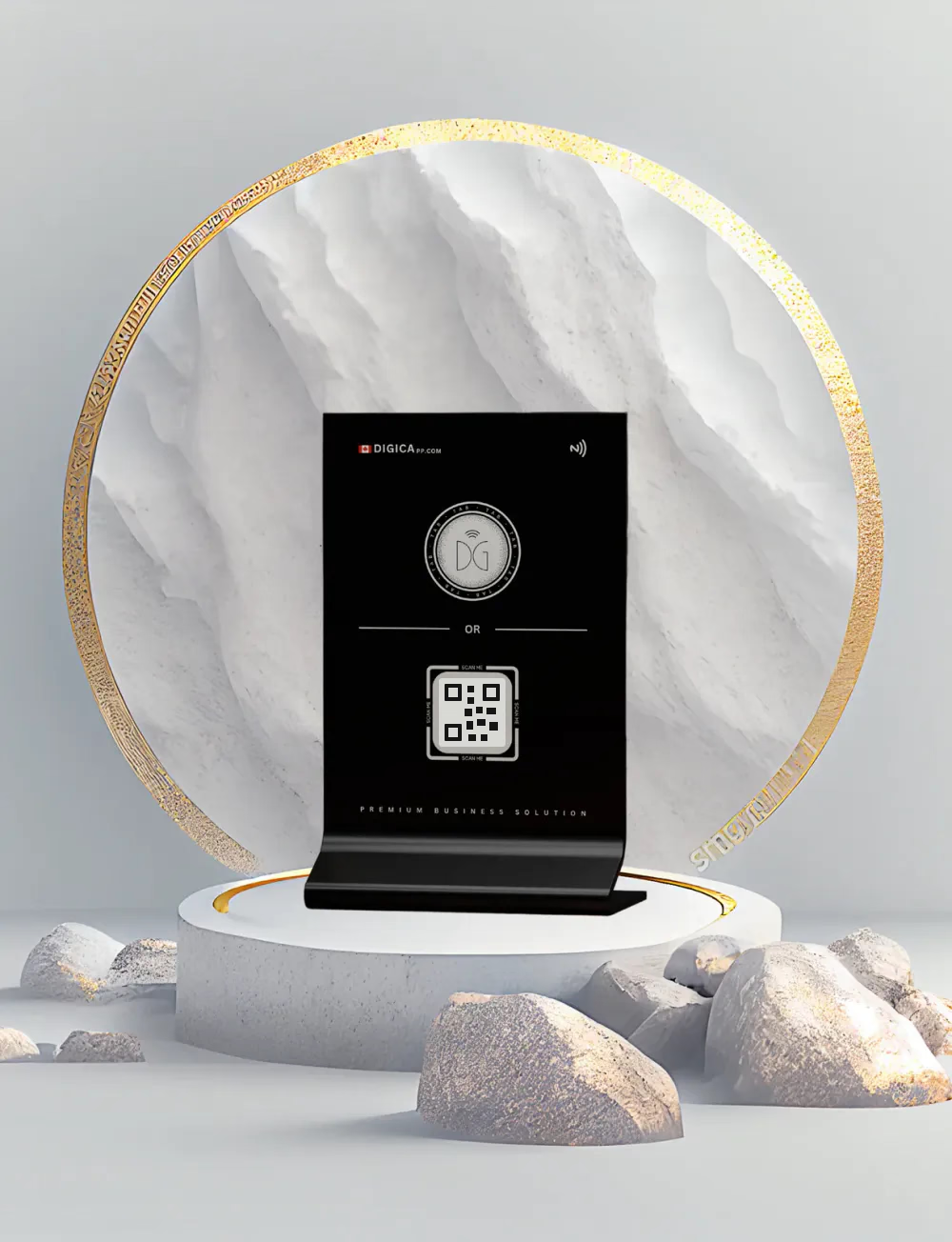
Use close physical proximity with an NFC-capable phone and follow the phone/app prompt. NFC availability and tap position vary by device. Do not rely on long-range interaction. Where the product also provides QR, QR remains an alternate interaction path.
10 · Save Contact
Save Contact does not silently write to someone’s address book. It starts the contact-file flow and the recipient confirms the save in their browser or operating system.
The recipient opens your shared Digica profile.
Choose “Save Contact” on the Public Profile.
The browser/operating system opens or downloads the contact card. The recipient completes the native contact-save action.
Expected: The contact is saved only after the recipient confirms it.
iPhone / Android: the exact native contact sheet can look different by operating system, browser and device maker. The Digica action remains “Save Contact.”
11 · Multiple profiles
Accounts with capacity for more than one profile can create and switch profiles from the current profile selector. The app’s membership capability is the source of truth for the limit.
From Profile, open the selector labeled “Your Profiles.”
Choose the profile you want to view, edit, share, or connect to a product.
Choose “Create New Profile.” If your current membership limit has been reached, Digica shows a profile-limit message instead of creating another.
12 · Wallet
The current Profile Tools area exposes “Save to Wallet.” Digica routes Android to Google Wallet and iPhone to Apple Wallet.
Open Profile → Save to Wallet. Digica prepares an Apple Wallet pass when the service is enabled and available on the device. If it is unavailable, the app tells you rather than fabricating a pass.
Open Profile → Save to Wallet. Digica prepares the current Google Wallet flow for the selected public profile key and returns the Wallet result in-app.
13 · Keep it current
Your Digica profile can be updated after it has been shared. Save the change in Edit Profile and verify the live result.
Open Profile → Edit and change the information that needs updating.
Use the explicit “Save Changes” action.
Open the live profile and confirm the updated information is visible.
Updating your Digica profile does not automatically rewrite information that another person previously saved into Apple Contacts, Google Contacts, or another native address book.
14 · Troubleshooting
These checks mirror current product behavior. They avoid internal debugging steps and do not expose private system details.
Your membership capability has reached its current profile capacity. Use an existing profile or review your membership options; the manual does not hard-code a stale limit.
Reopen Edit, confirm the required username/link, then tap “Save Changes” again. The current editor reports missing widget values before saving.
Open Edit, choose the image again, and tap “Save Changes.” The current app can report a profile saved with an image-upload warning.
The scanned product is already bound according to the activation service. Do not keep rescanning it; contact Digica support if the existing connection needs investigation.
Confirm you are on the intended saved profile. The current app reports when the selected profile does not have a QR/public destination yet.
Wallet support depends on platform, device capability, the profile’s public Wallet key, and current Wallet service availability. Follow the in-app message; no manual workaround should bypass it.
Open the Public Profile again and tap “Save Contact.” The final import is controlled by the recipient’s browser/operating system. If the action still does not open a contact flow, contact support with the device and browser you used.
15 · Help
Use Digica’s public support routes. Never send passwords, verification codes, private preview links, or activation secrets in a support message.